
When a WordPress site moves to HTTPS but still loads images, scripts, or styles over HTTP, browsers flag “mixed content” and start blocking requests. To fix SSL mixed content quickly, pinpoint insecure URLs with DevTools, set HTTPS redirects, update database links safely, correct hard-coded theme or builder assets, enforce HTTPS through CDN or proxy, and retest across browsers. This sequence works for most sites and avoids whack-a-mole fixes.
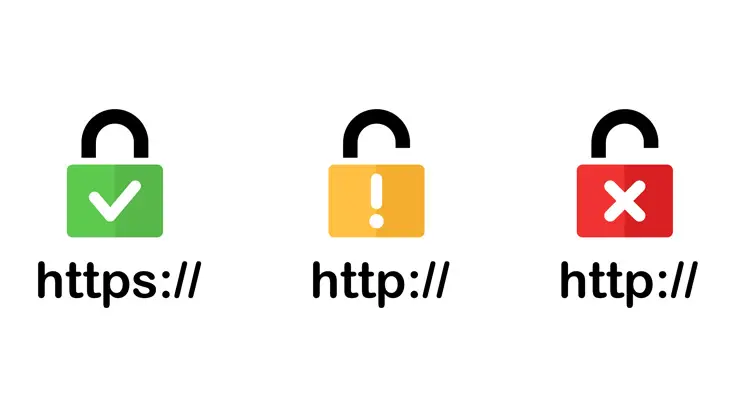
There’s a familiar scene. The lock icon vanishes, a yellow triangle appears, and a single old logo or jQuery call quietly trips the page. People see warnings. The page feels a bit “off.” Mixed content looks small, but it breaks trust, security, and analytics. This guide lays out practical ways to solve SSL mixed content issue in WordPress with both quick wins and durable, permanent fixes.
What Is Mixed Content in WordPress and Why It Hurts HTTPS and SEO
Mixed content happens when an HTTPS page references HTTP resources. Browsers treat that as a broken promise. The page claims a secure connection, yet critical parts still travel unencrypted. Modern engines respond by blocking active content, auto-upgrading some assets, and downgrading the page’s security indicator. Cloudflare describes this clearly and encourages serving every resource over HTTPS to keep the lock icon intact and avoid blocked CSS, JS, or images that change how a page looks or behaves [2].
From an SEO angle, mixed content undermines consistency. HTTPS is now a baseline signal, and losing the lock icon hurts perceived credibility, referral data quality, and conversion confidence. It also breaks features like service workers and some browser APIs that expect a secure context. In short, mixed content is not a “nice-to-have” cleanup. Sites should correct SSL mixed content errors as part of routine maintenance and migrations.
Mixed content vs invalid certificate and SSL connection errors
These issues are cousins, not twins. Mixed content involves insecure HTTP assets on an otherwise valid HTTPS page. Invalid certificate and SSL connection errors point to TLS problems like expired certs, wrong hostnames, obsolete versions, or handshake failures. Browsers may block the entire page when the certificate is wrong, while mixed content often yields partial blocking or warnings.
How browsers block insecure HTTP requests on HTTPS pages
Browsers split content into “active” and “passive.” Active content like scripts and styles can change behavior and are blocked outright when requested over HTTP from an HTTPS page. Passive items such as images may be auto-upgraded or blocked depending on the browser and version. Chrome began blocking mixed content by default years ago and has auto-upgraded portions of media since Chrome 79, a change documented in WordPress community write-ups and developer notes [1]. Firefox tightened mixed content handling further, including auto-upgrades for audio, video, and images in recent releases, with community references noting stricter behavior since version 127 [3].
The net effect. Expect blocking. Expect console messages. Expect inconsistent rendering if mixed content isn’t addressed. Cloudflare’s troubleshooting guide highlights typical lock icon changes and console logs that help locate problems quickly [2].
Quick Diagnosis: Tools to Detect and Resolve Mixed Content SSL Issues
Mixed content usually hides in plain sight. Good tools and a short checklist help expose it.
Use browser DevTools console and security panels
- Open the page, press F12 to launch DevTools, check the Console. You’ll see “blocked mixed content” errors with exact URLs. Cloudflare links to Chrome and Firefox docs on debugging mixed content, which walk through these panels step by step [2].
- Use the Security panel. It flags non-secure origins. The Network panel shows blocked requests, which is handy for scripts and CSS chains.
- Reload after DevTools is open so logs capture upgrades, blocks, or redirects.
Tip. Copy the HTTP URL, paste it into the address bar, and test with https substituted. If it loads, plan a search-and-replace or template fix. If it fails, you’ll need a different asset source.
Scan with online mixed content checkers and crawlers
- Why No Padlock. Quick single-page checks listing insecure resources [1].
- SSL Check by JitBit. Crawls up to a few hundred pages for HTTP assets on HTTPS sites [1].
- Ahrefs Site Audit. Detects HTTP/HTTPS mismatches during a broader SEO crawl [1].
- HTTPS Checker. Desktop scans, useful after big theme or CDN changes [1].
- WordPress plugins like SSL Insecure Content Fixer can automatically perform rewrites and surface issues [1].
Volume matters. Older blogs and media-heavy sites tend to carry lingering HTTP links. Bulk crawls help catch hidden assets in posts, widgets, and custom fields.
Review server, CDN, and reverse proxy logs
- Origin logs. Look for HTTP requests hitting port 80 when the site should be HTTPS-only.
- CDN logs. Confirm Automatic HTTPS Rewrites, Secure Origin Pulls, and caching behavior. Cloudflare’s guide explains how mixed content manifests through their edge and why enabling rewrites can help [2].
- Reverse proxies. If using NGINX or a load balancer, check whether the proxy passes scheme headers correctly. Misreported schemes can cause plugins or themes to generate HTTP links.
Small clue, big fix. A single upstream rule misreporting HTTPS as HTTP can produce widespread mixed URLs. Logs tell that story fast.
Method 1: Use a Plugin to Fix SSL Mixed Content in WordPress
Plugins are the fastest way to fix SSL mixed content for a broad set of pages, especially right after enabling HTTPS.
Configure Really Simple SSL or similar for automatic rewrites
- Install and activate Really Simple SSL to force HTTPS and rewrite common HTTP assets in runtime. We list this plugin as an “easy” path to clean up mixed content warnings when moving from staging to production with SSL [4].
- Enable the plugin’s redirect and mixed content rewrite features. Check site health or frontend pages for locked connections after activation.
- Optionally install SSL Insecure Content Fixer to handle edge cases where assets resist rewrite rules [1].
Runtime rewrites work, yet they add overhead. They’re wonderful during a migration window and as a safety net. Permanent fixes should follow.
When to rely on plugins versus permanent fixes
- Use plugins for rapid triage. This helps resolve mixed content while you prepare database changes or code updates.
- Plan permanent changes. INTELLIPLANS advises not relying on rewrite plugins long term. Update URLs in the database and correct hard-coded assets to avoid regressions and extra processing [1].
- Remove stopgaps later. After a clean HTTPS baseline, turn off heavy rewrite features to reduce moving parts.
Short-term convenience, long-term clarity. That balance keeps performance steady and lowers maintenance risk.
Method 2: Force HTTPS at the Server and Application Level
Redirect rules and headers set the ground truth. This is how you eliminate accidental HTTP entry points.
.htaccess or NGINX redirects, HSTS, and canonical HTTPS
Apache .htaccess rules:
RewriteEngine On
RewriteCond %{HTTPS} !=on
RewriteRule ^(.*)$ https://%{HTTP_HOST}%{REQUEST_URI} [R=301,L]
Community answers show similar patterns used to force HTTPS sitewide [3]. For NGINX, a simple server block sends HTTP traffic to HTTPS.
server {
  listen 80;
  server_name example.com www.example.com;
  return 301 https://$host$request_uri;
}
- HSTS. Send Strict-Transport-Security to tell browsers to use HTTPS in future visits. INTELLIPLANS notes HSTS doesn’t fix mixed content by itself, since the browser still evaluates per-resource security and blocks unsafe requests [1].
- Canonical HTTPS. Ensure rel=“canonical” points to the HTTPS version, preventing crawlers and plugins from inferring HTTP variants.
Redirects and headers create the fence. Updating URLs removes the weeds.
wp-config.php settings and secure cookies
Set application-level URLs and SSL flags.
define('WP_HOME', 'https://example.com');
define('WP_SITEURL', 'https://example.com');
define('FORCE_SSL_ADMIN', true);
For cookies, confirm secure and HTTPOnly flags through your security plugin or server configuration. Admin sessions should never traverse HTTP. This helps prevent mixed scheme confusion in plugins that read environment variables or server headers.
Method 3: Safe Search-and-Replace to Correct Insecure URLs
Updating HTTP to HTTPS across the WordPress database is the single most reliable mixed content fix. Do it safely to avoid breaking serialization.
Replace http URLs in the database without breaking serialization
- Back up the database. Create a full snapshot before any changes. We emphasize backups ahead of Better Search Replace tasks [4].
- Install Better Search Replace. Search for
http://yourdomain.comand replace withhttps://yourdomain.comacross selected tables. Uncheck “dry run” once counts look right [4]. - Use tools that understand serialized data. The interconnect/it script or WP-CLI can perform safe replacements without corrupting meta fields. INTELLIPLANS highlights these options and their dashboard tool for controlled changes [1].
- Purge caches when done. Clear WordPress and CDN caches to prevent stale HTTP links from reappearing [1].
- Retest pages with DevTools. Confirm no mixed content remains. If errors persist, the issue is likely hard-coded assets in templates or page builders.
This step eliminates the bulk of issues across posts, widgets, shortcodes, and media records. It’s the backbone of any WordPress SSL mixed content fix.
Update WordPress and site address, home_url, and site_url usage
- Settings. Confirm Settings → General “WordPress Address” and “Site Address” both use HTTPS.
- Template functions. Use
home_url(),site_url(), andplugins_url()to construct paths. Avoid hard-coded domains in templates. - Protocol-relative URLs. Where appropriate, use
//cdn.example.comto inherit the page’s scheme, a practice shown in developer threads to avoid mixed content when the same templates serve both HTTP and HTTPS contexts [3].
Rely on WordPress helpers, not copy-pasted absolute links. Helpers change with the site, links don’t.
Plugins are what make WordPress great, but they can also be a source of vulnerabilities if not properly managed.
Method 4: Fix Hard-Coded HTTP in Themes, Plugins, and Page Builders
Mixed content often lives in theme headers, custom widgets, and builder-generated CSS files. Track down the places that print URLs.
Elementor, Divi, and theme templates calling absolute URLs
Elementor. After switching to HTTPS, update Elementor site settings so CSS regenerates with new scheme. Clear cache. INTELLIPLANS and community notes mention this step resolving lingering CSS links [1].
Our help center guides using plugins to fix mixed content and then regenerating assets when the installation was initially configured for HTTP [4].
Theme headers and footers. Inspect
header.php,functions.php, and enqueue calls for absolute HTTP links to fonts, scripts, or images.
A quick micro-fix. Swap a header script from http:// to https:// or use a protocol-relative URL. A Stack Overflow thread shows the simple change that eliminates blocked jQuery or CSS includes on HTTPS pages [3].
Use protocol-relative URLs and WordPress helper functions
Protocol-relative. Use
//code.jquery.com/...so the browser adopts the page’s scheme, a commonly accepted approach in mixed content discussions [3].Proper enqueues. Use
wp_enqueue_scriptandwp_enqueue_stylewith HTTPS URLs or helper-derived paths. Avoid inline<script>tags with absolute domains.Media URLs. Replace template image paths with
get_template_directory_uri(), which respects HTTPS and avoids hardcoded schemes.
These small changes add up. They prevent future regressions when cloning environments or toggling CDN settings.
Method 5: Address Mixed Content from Media, JS, CSS, CDNs, and Proxies
Assets move through layers. Each layer needs to speak HTTPS consistently.
Regenerate media and correct attachment and srcset links
Regenerate thumbnails. If older images carry HTTP in attachment metadata or
srcset, a regeneration can rebuild paths under HTTPS.Bulk update posts. After search-and-replace, run a quick audit of image-heavy pages. Large galleries and older blog posts are frequent offenders, a pattern seen in community audits and Ahrefs site checks [1].
Widgets and page options. Many themes store logos and icons in theme options tables. Update and resave under HTTPS.
Visuals sell trust. Nothing breaks a visitor’s confidence faster than missing icons or broken hero images because the browser blocked HTTP assets.
Properly enqueue scripts and styles over HTTPS
Centralize enqueues. Place CSS and JS includes in
functions.phpwith HTTPS or helper-derived URLs.Third-party libraries. jQuery, Font Awesome, or slider scripts should use HTTPS endpoints. Threads show even a single HTTP library can trigger wide blocking [3].
Content Security Policy. As a temporary bridge,
upgrade-insecure-requestscan auto-upgrade HTTP to HTTPS for eligible resources, noted in developer discussions. Use cautiously and treat as a stopgap [3].
Hear the sigh of relief when console errors disappear. Proper enqueues make that happen.
Cloudflare, reverse proxy, and origin pull HTTPS settings
Automatic HTTPS Rewrites. Cloudflare can rewrite HTTP links to HTTPS when possible, a recommended option in their WordPress plugin [2].
Origin pull settings. Confirm your CDN or proxy connects to the origin over HTTPS and forwards the correct scheme so WordPress generates secure URLs [2].
Cache and purge. After changes, purge edge caches. Cloudflare’s docs stress that mixed content often shows up as missing content or odd rendering until rewrites and purges align [2].
Proxies amplify good setups and magnify bad ones. A small toggle like Automatic HTTPS Rewrites can remove headaches.
Method 6: External Embeds, Fonts, and Third-Party Scripts
External assets are classic mixed content sources. Treat them like part of the site’s security perimeter.
Iframes, web fonts, maps, and analytics over HTTPS
Embeds. YouTube, Vimeo, or map iframes should use HTTPS embed codes. Swap old pasted snippets from HTTP to HTTPS.
Fonts. Google Fonts and icon sets must load via HTTPS. An HTTP font blocks CSS rendering and breaks icons.
Analytics and pixels. Tag managers, analytics scripts, and ad pixels should all reference HTTPS. Many vendors provide protocol-relative snippets. Use them.
Old snippets linger. Refresh vendor snippets from current docs. A single outdated embed can sabotage an otherwise clean HTTPS rollout.
Self-host critical assets or find secure alternatives
Self-host if the provider doesn’t serve HTTPS. Host the script or image locally under your secure domain.
Choose secure CDNs. Prefer providers with modern TLS, HTTP/2, and clear mixed content guidance, as Cloudflare documents in their troubleshooting section [2].
Retire insecure sources. If a third-party resource remains HTTP-only, consider replacing it. Site reliability beats a fancy widget that breaks security.
There’s a saying most teams repeat. “If it isn’t HTTPS, it doesn’t ship.” It’s blunt, and it’s correct.
Method 7: Multisite, E-commerce, Caching, and Host-Specific Notes
Complex WordPress setups introduce extra places for mixed content to hide. Address the special cases.
Network settings, domain mapping, and WooCommerce pages
Multisite. Confirm the network admin and each site’s domain settings use HTTPS. Domain mapping plugins should reflect secure hostnames.
WooCommerce. Force HTTPS for checkout and account pages. Update payment provider scripts, icons, and badges to HTTPS.
Subdomains. Verify subsite media libraries and theme options. Mixed content can be localized to a single child site with its own settings.
E-commerce users feel exposure more acutely. Checkout pages should never display mixed content warnings, period.
Purge caches and invalidate CDN assets after changes
Object caches, page caches, and minified bundles all preserve old links. Purge them.
Invalidate CDN assets. Where possible, purge by URL pattern to clear old HTTP references. INTELLIPLANS notes clearing platform caches after search-and-replace to remove stale assets [1].
Re-minify and rebuild. If using optimization plugins, regenerate minified CSS and JS under HTTPS.
Old cache fingerprints will reintroduce mixed content. Clean the slate or expect déjà vu.
Mixed content SSL GoDaddy and common hosting pitfalls
Managed hosting toggles. Confirm platform-level HTTPS redirects and scheme detection are on. Some providers require enabling a “force HTTPS” setting.
cPanel AutoSSL vs CDN. If the origin uses AutoSSL but the CDN pulls HTTP, correct origin pull settings to HTTPS and enable rewrites. Cloudflare explains these interactions in their troubleshooting notes [2].
Staging syncs. When pushing from HTTP staging to HTTPS production, run search-and-replace and regenerate builder assets. Community threads often mention older blog photos staying HTTP until a safe database update and purge are done [5].
Hosts differ. The pattern doesn’t. Make sure the origin, CDN, and WordPress agree on HTTPS everywhere.
Post-Fix Verification and Ongoing Monitoring
Finishing the job means proving the site is clean today and stays clean tomorrow.
Re-scan, crawl, and audit with Lighthouse and security headers
Run Lighthouse and DevTools audits. Check for secure contexts, mixed content, and best-practice headers.
Validate HSTS and CSP. Use HSTS for strict HTTPS and consider a cautious CSP once URLs are corrected. INTELLIPLANS’ note reminds that HSTS does not repair mixed content by itself, so use it alongside URL fixes [1].
Crawl again. Use your chosen checker to confirm no HTTP references remain across key templates and long-tail posts.
Methodology and data sources. The steps here rely on browser DevTools, mixed content scanners, WordPress-safe database tools, and CDN settings outlined in Cloudflare’s documentation. References at the end point to the original guidance and community-tested solutions [1][2][3][4].
Test across Chrome, Safari, Firefox, and mobile devices
Desktop browsers show slightly different warnings and auto-upgrade behaviors. Cloudflare notes icon and console differences by browser [2].
Mobile. Test iOS Safari and Android Chrome. Mobile can cache differently and surface issues with fonts or inline scripts.
Edge cases. Private windows and hard reloads uncover caching residue.
People don’t use one browser. Neither should testing.
Set up alerts to catch regressions after updates
Monitoring. Track HTTPS availability and console errors after theme or plugin updates.
CDN events. Review change logs when toggling rewrite or caching features, as Cloudflare suggests for mixed content troubleshooting [2].
SEO crawls. Schedule periodic audits. If a content editor pastes an HTTP image, the scan will catch it and you can resolve mixed content SSL issues quickly.
Prevention is quieter than repair. Alerts save time and protect trust.
FAQ: Fix SSL Mixed Content and Related SSL Problems
How to fix mixed content issues?
Use browser DevTools to locate blocked or insecure HTTP resources. Set up server redirects to enforce HTTPS. Carefully search and replace http://yourdomain.com with https://yourdomain.com in the database. Update hard-coded assets in themes, plugins, or builders. Activate CDN rewrites. Clear caches and test again. INTELLIPLANS provides a detailed overview of these steps and the recommended tools .
How to fix an SSL problem?
First confirm certificate validity, chain, and hostname. Replace expired or mismatched certs. Eliminate legacy TLS and redirect all traffic to HTTPS. Then address mixed content by updating URLs and delivery paths. Cloudflare’s SSL troubleshooting and mixed content guide provides a practical framework [2].
How to fix mixed content in Elementor after moving to SSL?
Update site URL settings inside Elementor so it regenerates CSS under HTTPS. Clear caches, purge CDN, and run a safe database search-and-replace for old HTTP links. This combination typically cleans up lingering builder-generated assets, as noted in platform help articles and community advice [1][4].
How to get rid of SSL error on iPhone?
iPhone browsers reflect the same core issues. Confirm the site’s certificate is valid and trusted. Force HTTPS redirects. Remove mixed content by updating URLs and assets. Clear CDN caches. Test on mobile Safari and Chrome to verify the lock icon and absence of console warnings. Cloudflare’s notes about browser indicators apply on mobile as well [2].
Conclusion: Key Steps to Correct SSL Mixed Content Errors in WordPress
Mixed content looks small but carries outsized consequences. The practical order of operations is straightforward. Diagnose with DevTools. Force HTTPS at the server. Perform a safe database search-and-replace. Fix hard-coded assets in themes, Elementor or Divi. Enable CDN rewrites. Purge caches and verify with crawls. This sequence consistently solves SSL mixed content difficulties and stabilizes long-term HTTPS health.
Recommended order of operations and next steps
Step one. Find and list HTTP assets with DevTools and a scanner.
Step two. Turn on HTTPS redirects and HSTS.
Step three. Update database URLs safely.
Step four. Correct theme, plugin, and builder assets.
Step five. Purge caches, enable CDN rewrites, and retest across browsers.
Next. Add light monitoring and a content-editing checklist. The goal is a site where editors naturally add HTTPS assets and the platform refuses anything else.
Where to get help: SSL mixed forum, hosting, and professional support
Hosting support. Ask your provider to review redirects, certificates, and scheme detection.
CDN help desks. Use Cloudflare’s guides and plugin to address rewrites and origin pulls [2].
SSL mixed forum threads. Community Q&A often surfaces fixes for specific themes and embeds, like protocol-relative URLs and CSP tweaks [3][5].
Professional cleanup. A developer can audit templates, enqueues, and page builder output to repair SSL mixed content problems fully.
If the lock icon still misbehaves, circle back through the checklist. It’s the sure way to fix SSL mixed content, keep pages trustworthy, and stop warnings from creeping back in.
References
How to Quickly Fix Mixed Content Warnings (HTTPS/SSL). https://www.secureserver.net/help/troubleshooting-wordpress-5675?pl_id=106430&plid=106430&prog_id=intelliplans
Cloudflare. Mixed content errors · SSL/TLS docs. Last updated February 5, 2025. https://developers.cloudflare.com/ssl/troubleshooting/mixed-content-errors/
Stack Overflow. Why am I suddenly getting a “Blocked loading mixed active content” issue in Firefox? https://stackoverflow.com/questions/18251128/why-am-i-suddenly-getting-a-blocked-loading-mixed-active-content-issue-in-fire
Fix mixed content errors in WordPress
https://www.secureserver.net/help/fix-mixed-content-errors-in-wordpress-27218?pl_id=106430&plid=106430&prog_id=intelliplansReddit r/WordPress. How to fix Https/Http mixed content issue? https://www.reddit.com/r/Wordpress/comments/1i26lka/how_to_fix_httpshttp_mixed_content_issue/
Why No Padlock. Mixed content and SSL testing tool. https://www.whynopadlock.com/
JitBit. SSL Check tool. https://www.jitbit.com/sslcheck/
HTTPS Checker. Desktop site scanner. https://httpschecker.net/